

The Conversations App provides enhanced tab management capabilities for transfer destinations such as Consult, Blind Transfer, Add a guest, allowing administrators to customize the agent interface to align with specific workflows and operational priorities. With these settings, admins can reorder them, control visibility, and configure tabs based on each channel.
How to Access Tab Management Settings
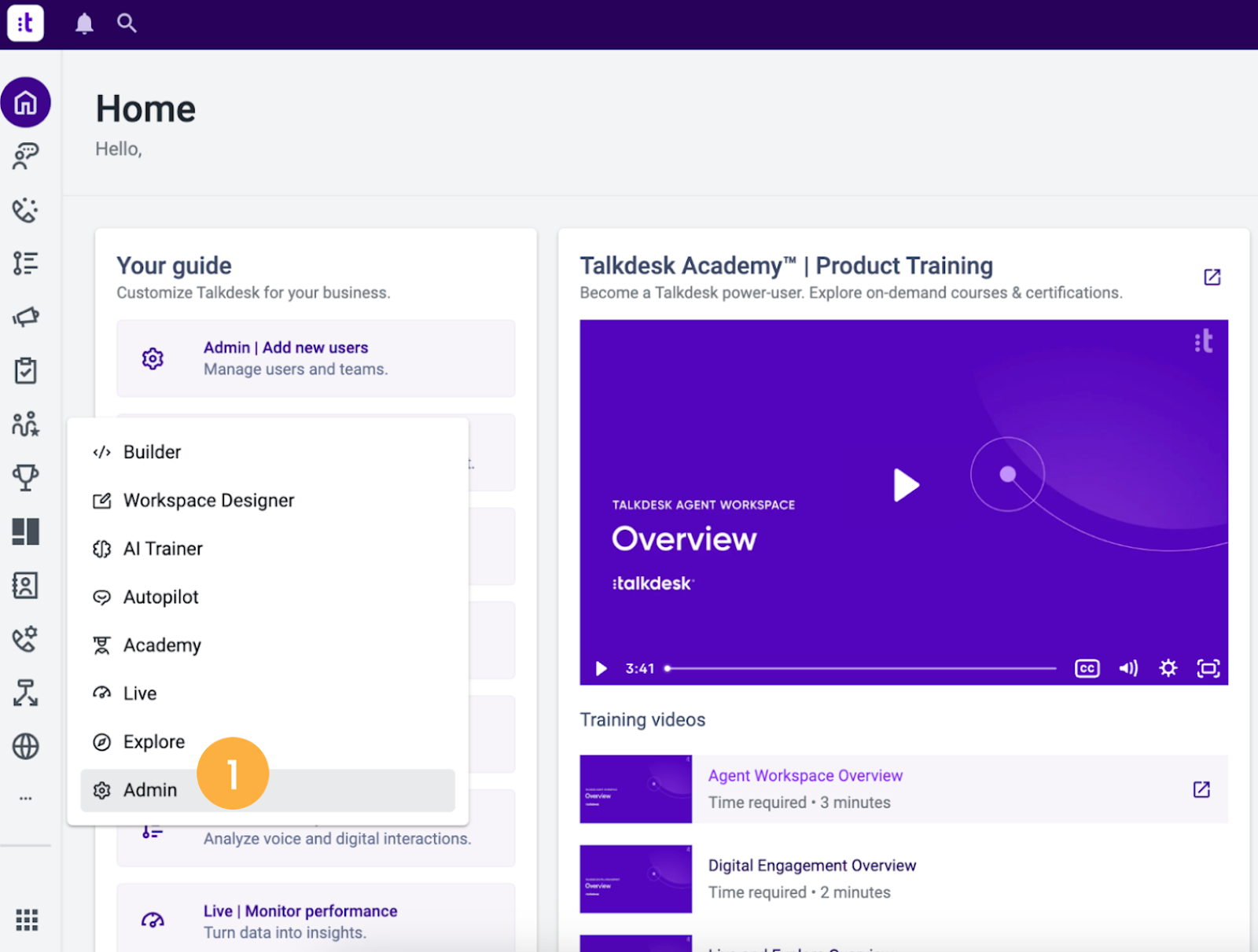
- Navigate to Admin [1] in Talkdesk from the workspace dock.
- Click on Channels [2] from the menu.
- Select Conversations [3] from the available tabs under Channels.
- Choose the specific channel (Voice, SMS, Chat, Email, etc.) where you want to manage or edit the tabs.
Editing Dashboards
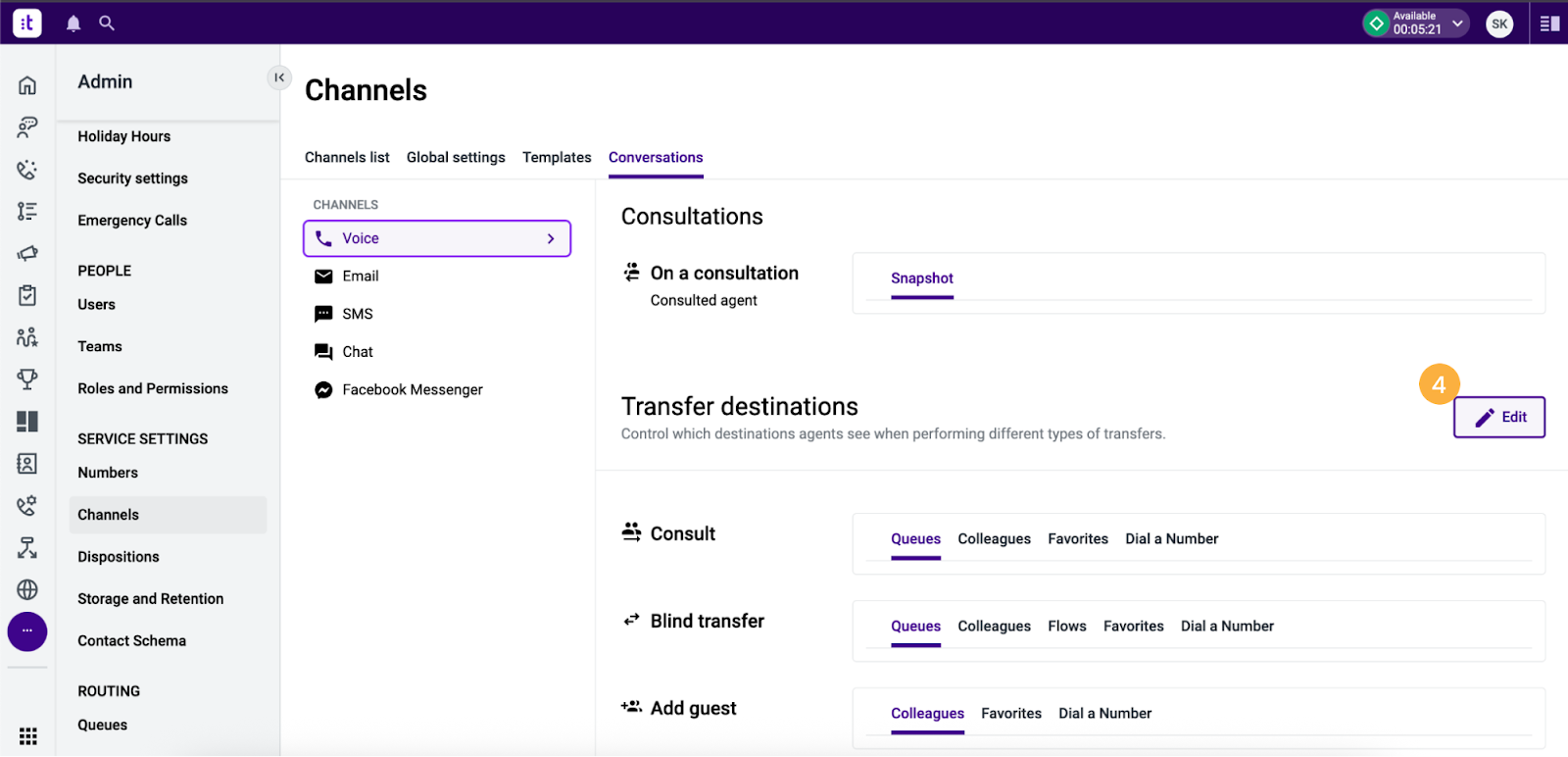
Once you have selected a channel, click on Edit [4] in the top right corner of the screen. You will now see Transfer Destinations available for each channel. For example, if an agent wants to see the Colleagues tabs first while On a Call and while clicking on Consult.
Re-ordering of the tabs
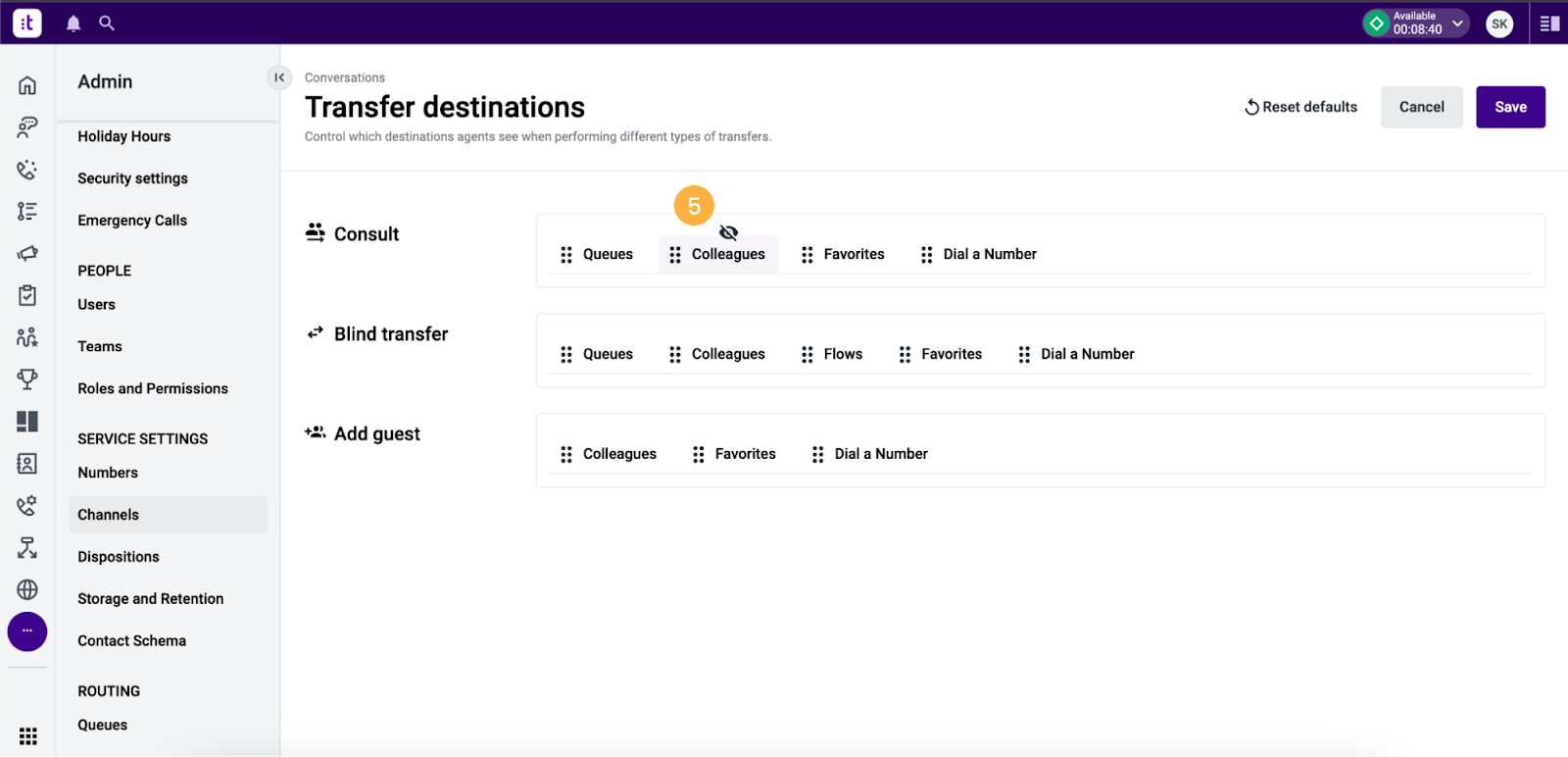
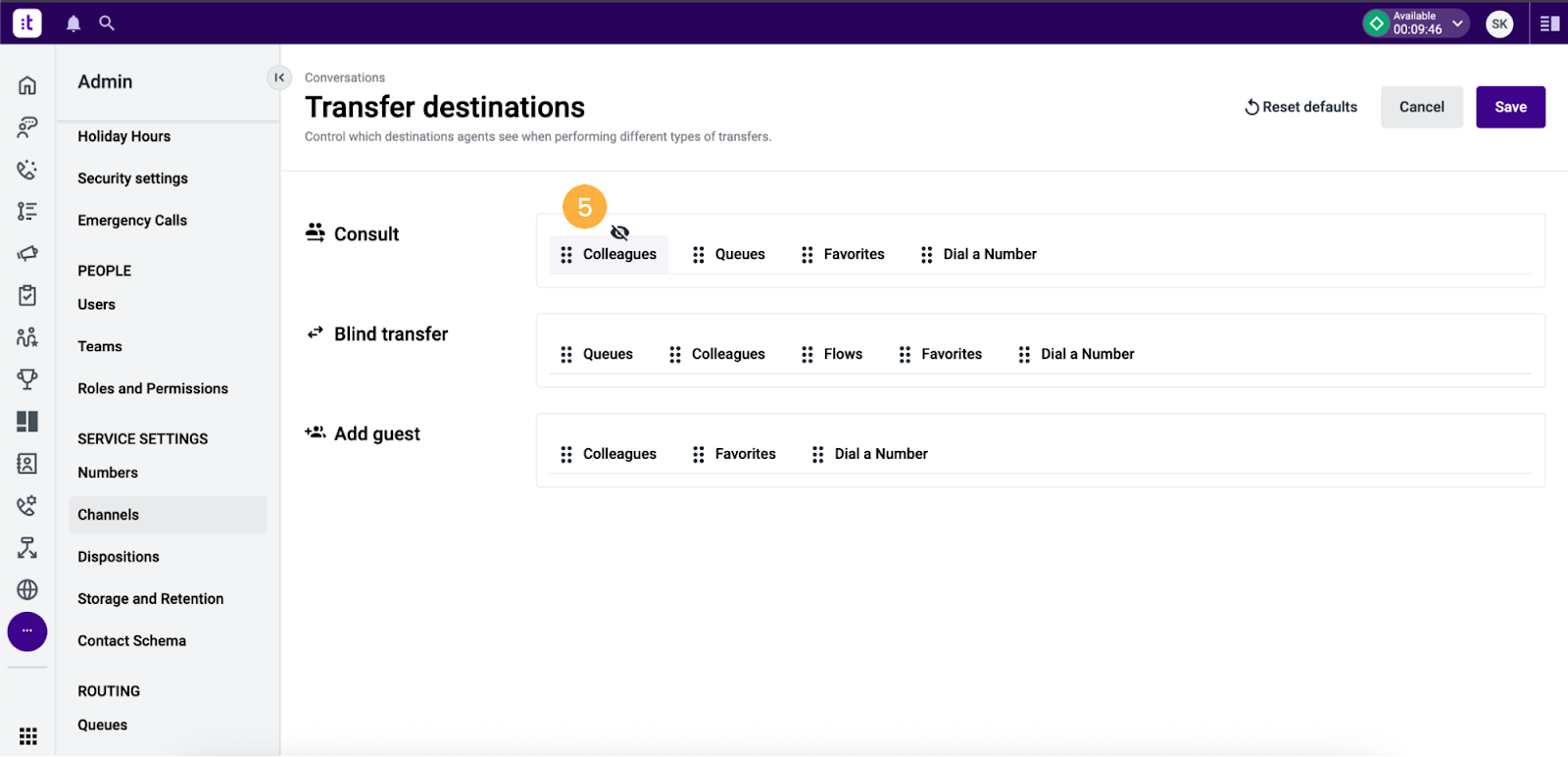
To reorder tabs, click on the drag-and-drop icon [5] next to the tab name and move it to the desired position. This allows you to prioritize the most relevant tabs for agents.
For example, if agents handling calls need the Colleagues tab to be the primary tab during an interaction when hit transfer, you can drag it to the left, and it will become the first tab, and the other tabs will automatically adjust accordingly.
Hide/Unhide tabs
Hiding tabs means you can control which tabs are visible to agents, hiding unnecessary ones based on the agent's needs. Similarly, you can unhide the tabs that are needed. Hiding tabs allows admins to control visibility, ensuring agents see only the most relevant tabs for their workflow.
To hide tabs, hover over the tab you want to hide. Once hovered over, you can see an eye icon that represents the visibility of that tab. To hide a visible tab, simply click on that eye icon to hide it. When hidden, it is represented as shown in the image above.
To unhide tabs, locate the tab you want to unhide, and click the eye icon again to restore its visibility.
Note: Once the changes made in the Admin settings are applied, agents will need to refresh the Conversations App for the updates to take effect.