

In increasingly compact screen environments where agents may prefer split-screen views, embedded third-party systems (e.g. Salesforce), or small-screen devices, the traditional vertical conversation layout creates usability issues. Tabs can wrap, controls can get hidden, and agents might have to scroll unnecessarily to manage basic interactions.
To address this, the Conversations app has a Horizontal Layout that’s built for smaller screen widths. This layout provides agents with a clean, compact way to navigate active conversations and manage controls without sacrificing functionality or context.
Key Features
- Horizontal Interaction Tabs: View and switch between active conversations quickly across the top in a tabbed manner.
- Reorganized Call Controls: All essential functions like mute, end call, etc. are retained in a space-saving format.
- Screen-Adaptive UI: Adjusts automatically when display space is tight, without manual input.
- Settings: There are two types of settings in the Admin menu to easily switch to the Horizontal Menu.
Enabling the Horizontal Layout Experience
There are two different methods to enable the Horizontal Experience. See details on each below:
Through Users
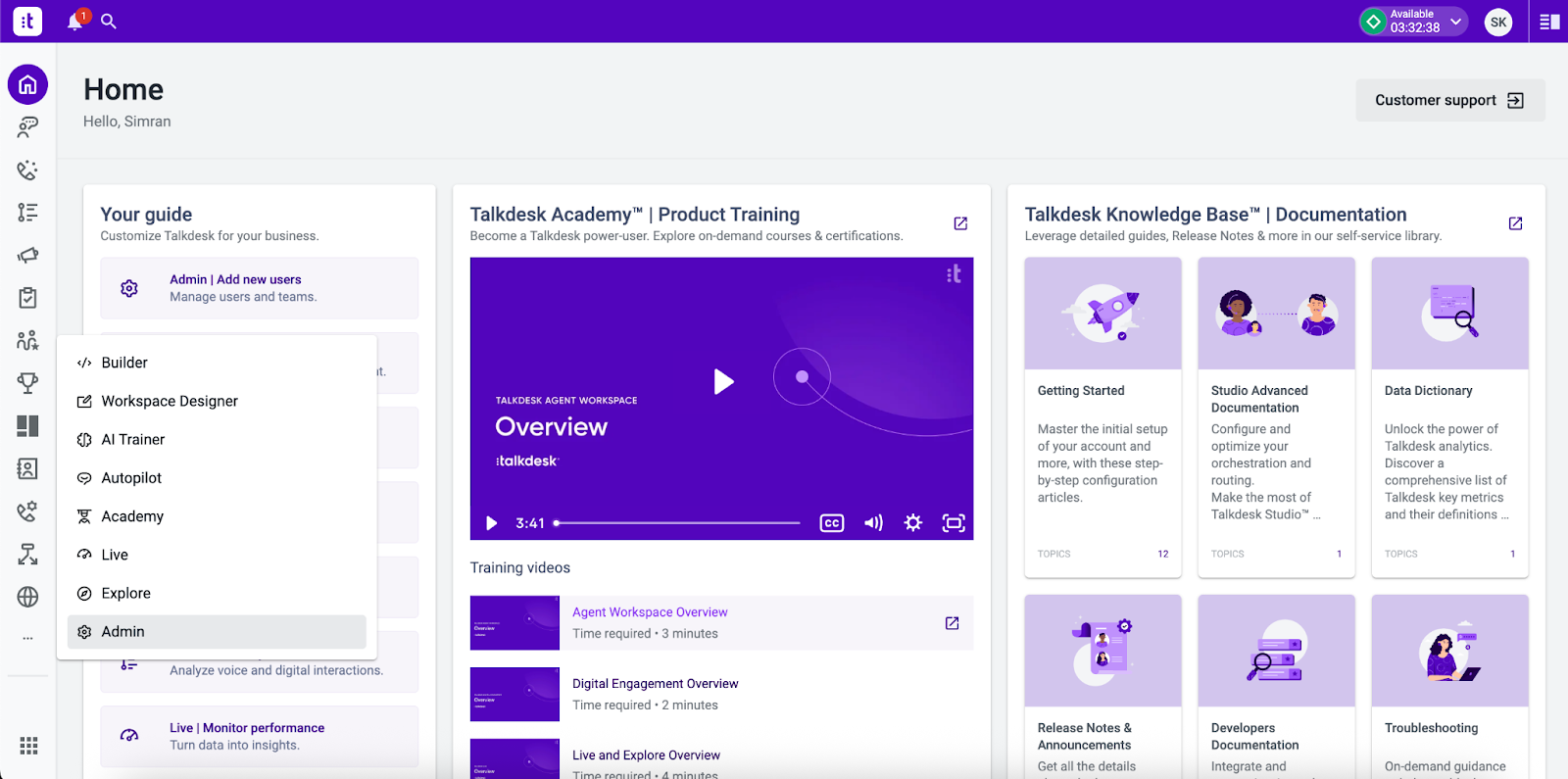
Step 1: Go to Admin.
Step 2: Click on “Users” and start selecting the agents you want to switch to the New Horizontal Layout Menu Experience.
Step 3: Once selected, click on the “Edit Conversations” option using the More Options (...) button.
Step 4: Select the "Horizontal Menu” and click on Save to switch to the new UI.
Step 5: Once saved, go to the Conversations app and refresh to see the New Horizontal Layout.
Note: Only the selected agents can see the new horizontal layout experience. For the rest of the agents, the default UI (the existing Vertical menu) will be the one displayed.
Through Bulk Management
Step 1: Go to Admin settings.
Step 2: Click on “Bulk Management” on top and click on import.
Step 3: Download the CSV template and fill out the Horizontal Layout column with a ‘True’ or ‘False’ to enable or disable the updated menu experience respectively.
Step 4: Upload the updated CSV from your desktop and click on Import. This should update the settings for the selected agents to be able to see the new horizontal layout experience.